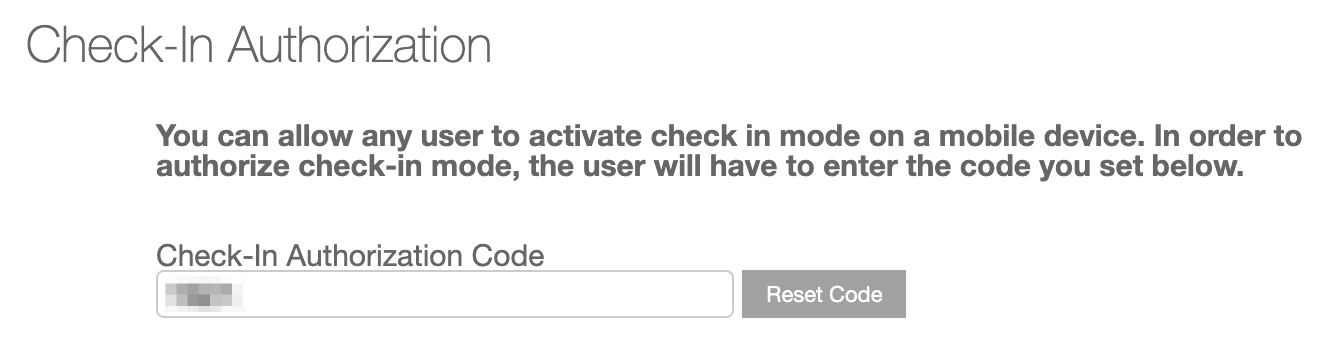
In the MANAGE ORGANIZATION area of your Dashboard, you will see a section on the left entitled EVENT SETTINGS. The section contains the default configuration of five event-level settings that are transferrable from event to event.
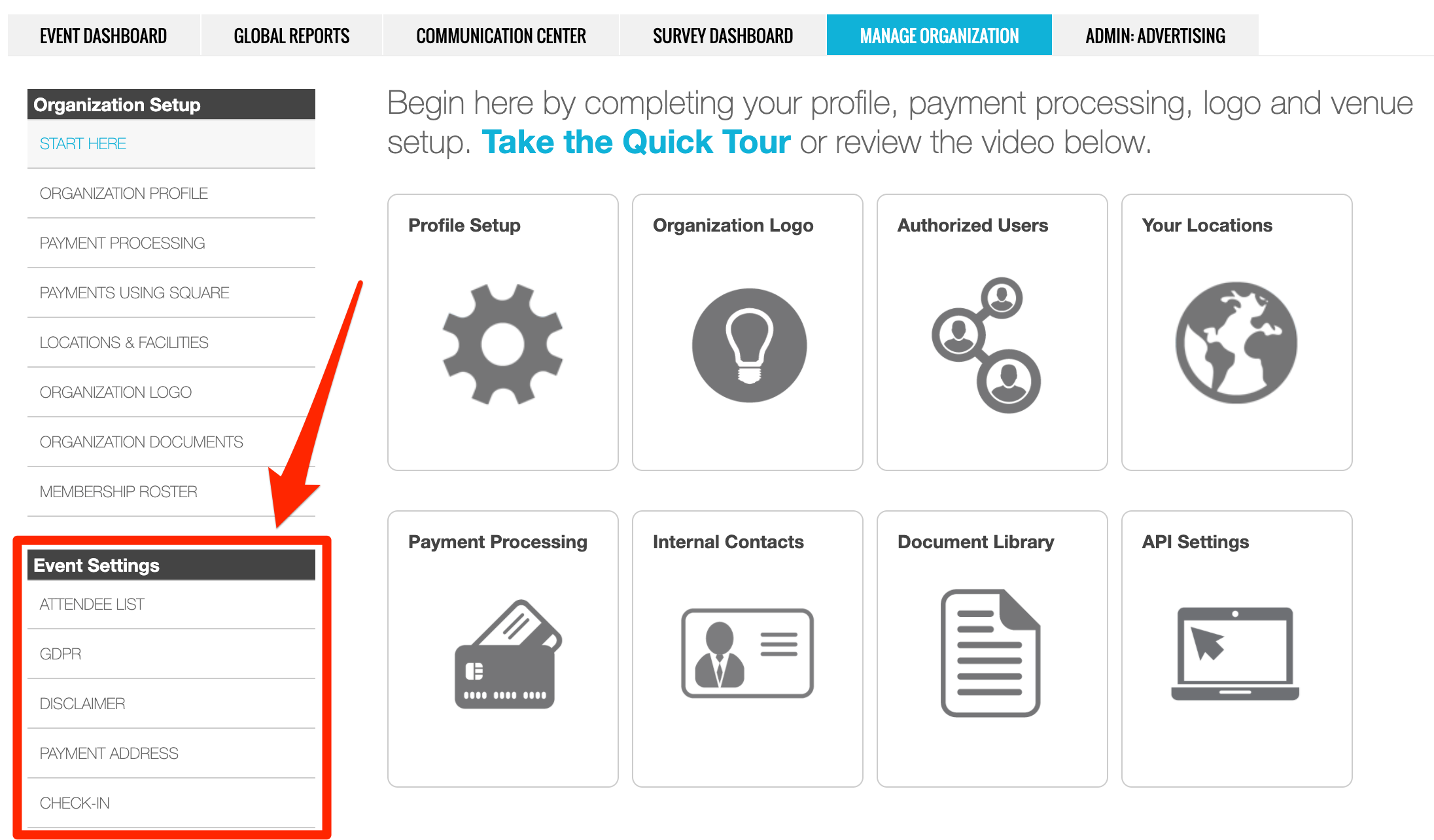
Changing any of these five settings will instantly reflect across all of your events.
ATTENDEE LIST
With each event, you have the opportunity to publish an attendee list. The attendee list will display a mini bio of each registrant, so long as they opt in to be displayed. Of course, each registrant can opt out. The opt in/opt out is presented to the registrant at the beginning of the form.
Click HERE to learn more about configuring the published attendee list for registrants to customize their bios for display.
In the Attendee List area of the Event Settings section, however, you can dictate whether the OPT IN or OPT OUT is selected by default. Selecting the OPT IN as the default for your registrants means that the registrant would have to manually opt OUT in order to not be displayed.
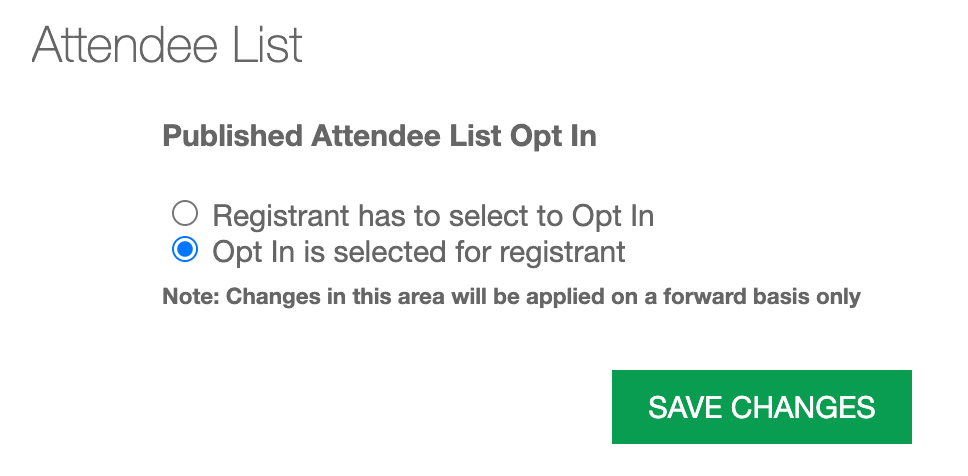
Consider your event's business rules and goals to determine what the right call is for this setting. Remember, the published Attendee list is activated within the Content Activation tool inside the WEBSITE section of the Event Builder. (Click HERE to learn more about Content Activation.)
GDPR
The General Data Protection Regulation is a regulation in EU law on data protection and privacy in the European Union (EU) and European Economic Area (EEA). It also addresses the transfer of personal data outside the EU and EEA areas.
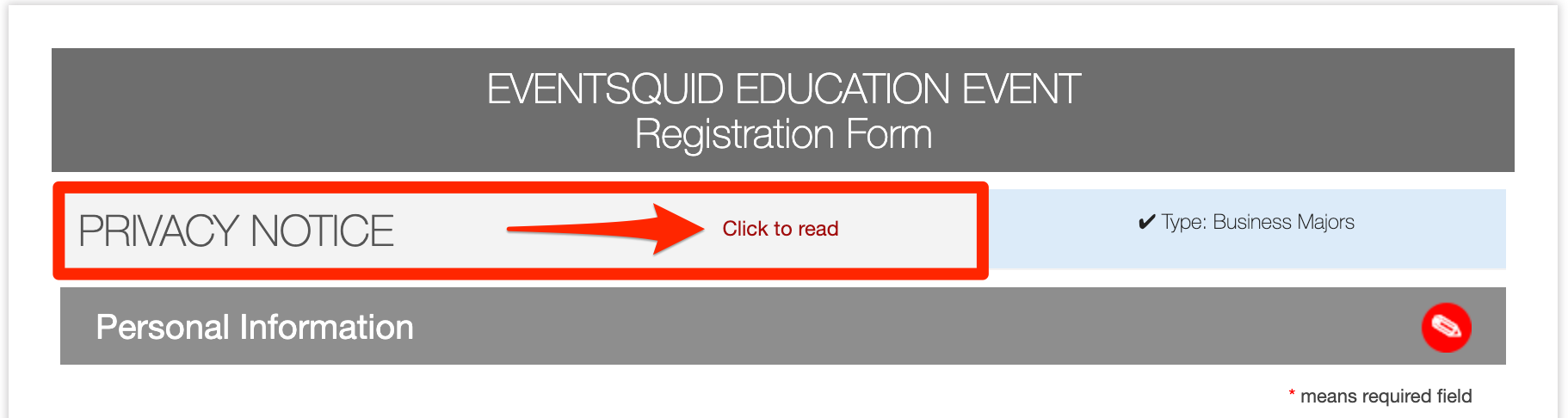
All registrants can view the GDPR policy language you set forth during registration, by clicking the CLICK TO READ link at the very top of the form:
DEFAULT DISCLAIMER
You can include an Acknowledgement & Disclaimer statement at the end of your registration form(s). In the Default Registration Form or Custom Registration Profile editor, there is a section called FORM TEXT. At the bottom, you will see a text editor box for the Acknowledgement & Disclaimer.
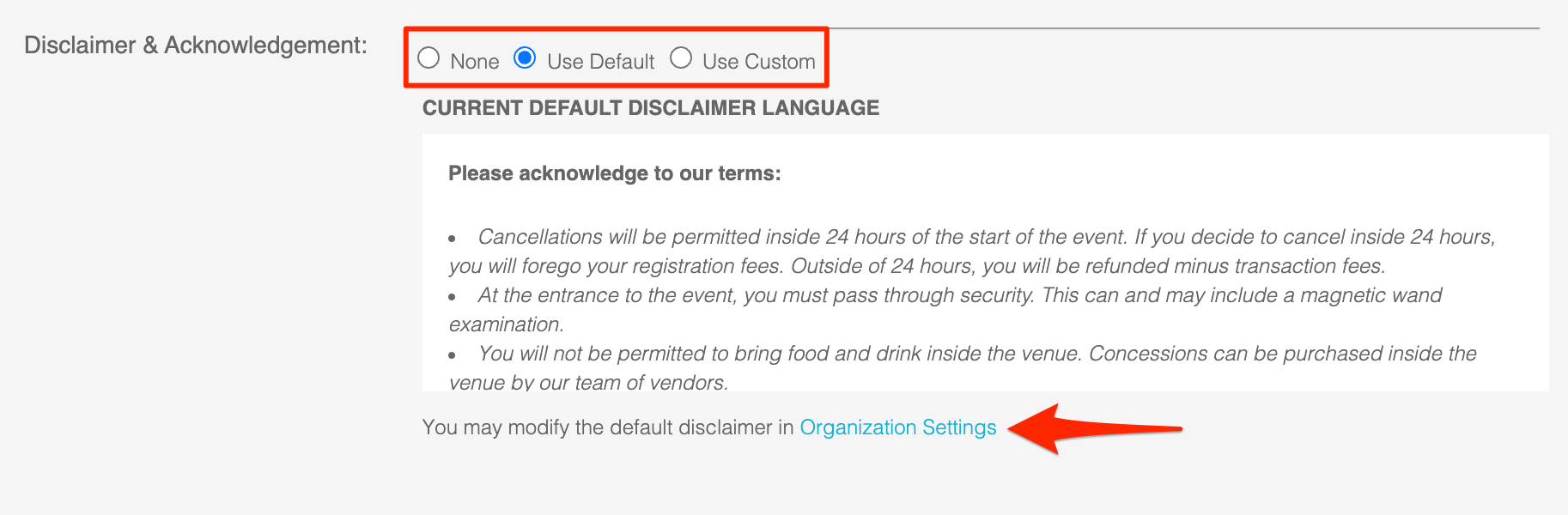
When put forth, registrants are required to check a box next to the Disclaimer, acknowledging your terms. If they do not check the box, they will not be permitted to proceed to checkout.
You will see that you have three options for the Disclaimer:
- None - this removes the Disclaimer from the from
- Use Default - this will derive the default Disclaimer language that set within Event Settings
- Custom - create a unique Disclaimer for this particular form
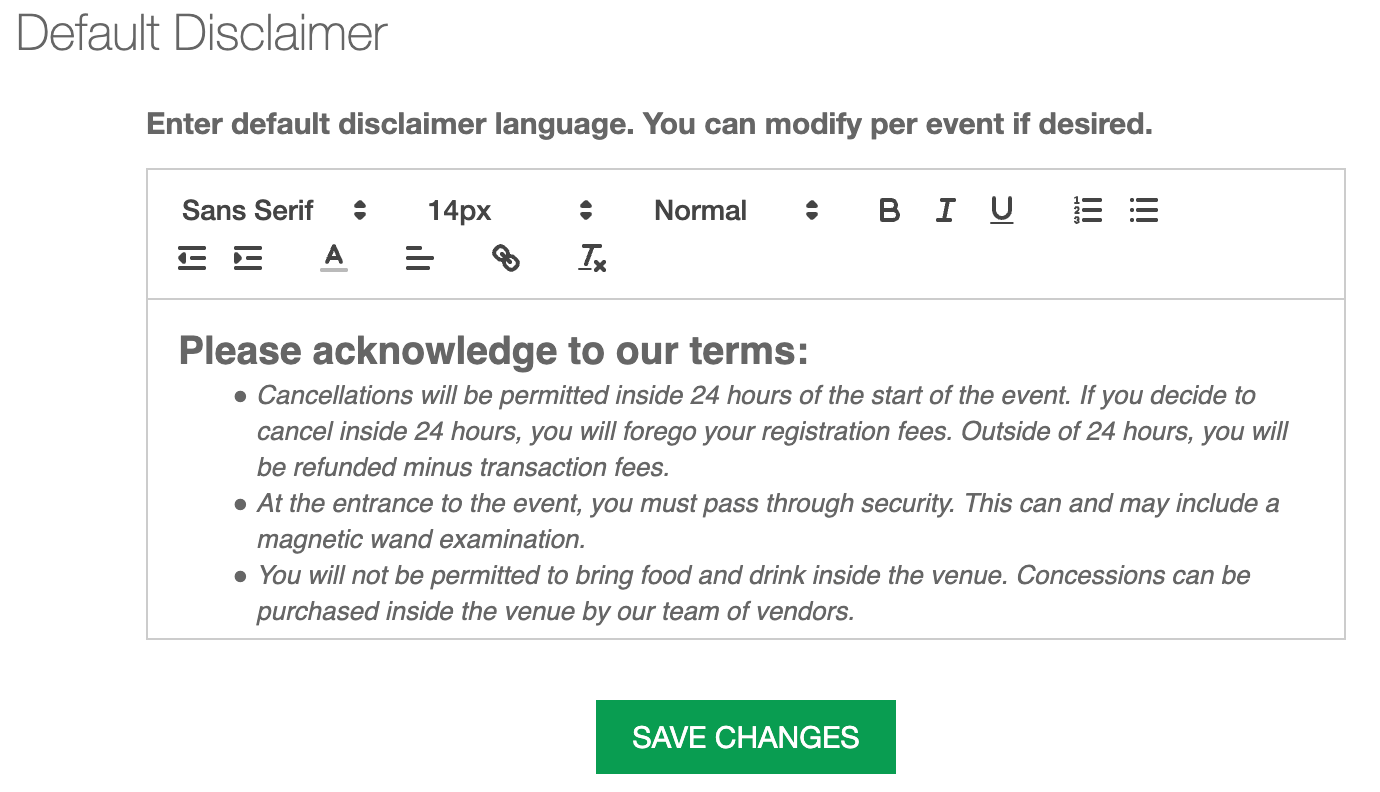
Below the editor, you will see a link to ORGANIZATION SETTINGS. Clicking this link will land you right in the default Disclaimer editor, inside the EVENT SETTINGS area of the MANAGE ORGANIZATION tab.
PAYMENT ADDRESS
Designate a default check payable address.

CHECK-IN
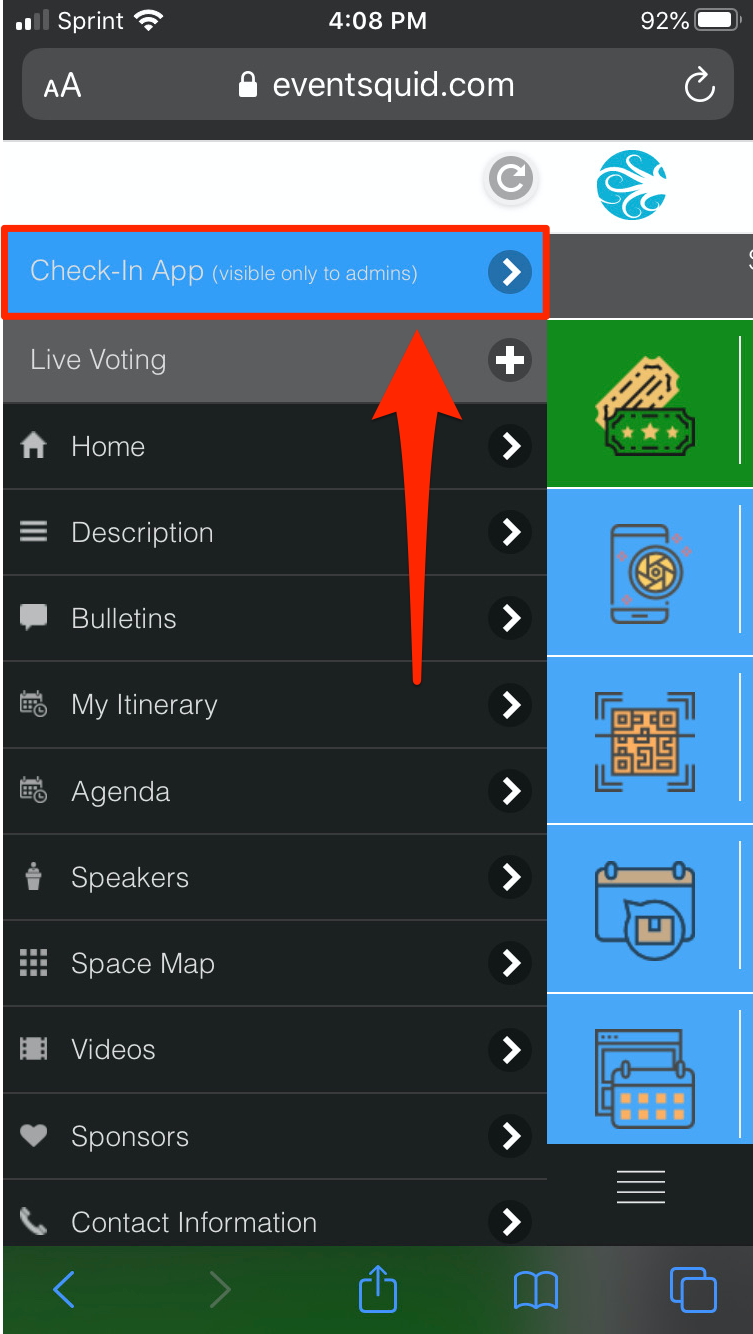
When accessing the mobile check-in app, the admin operating the device must identify themselves as an admin. To access the mobile check-in app, first the admin must sign in to your mobile event website. Then, click the main menu icon and select Check-In at the top of the menu:
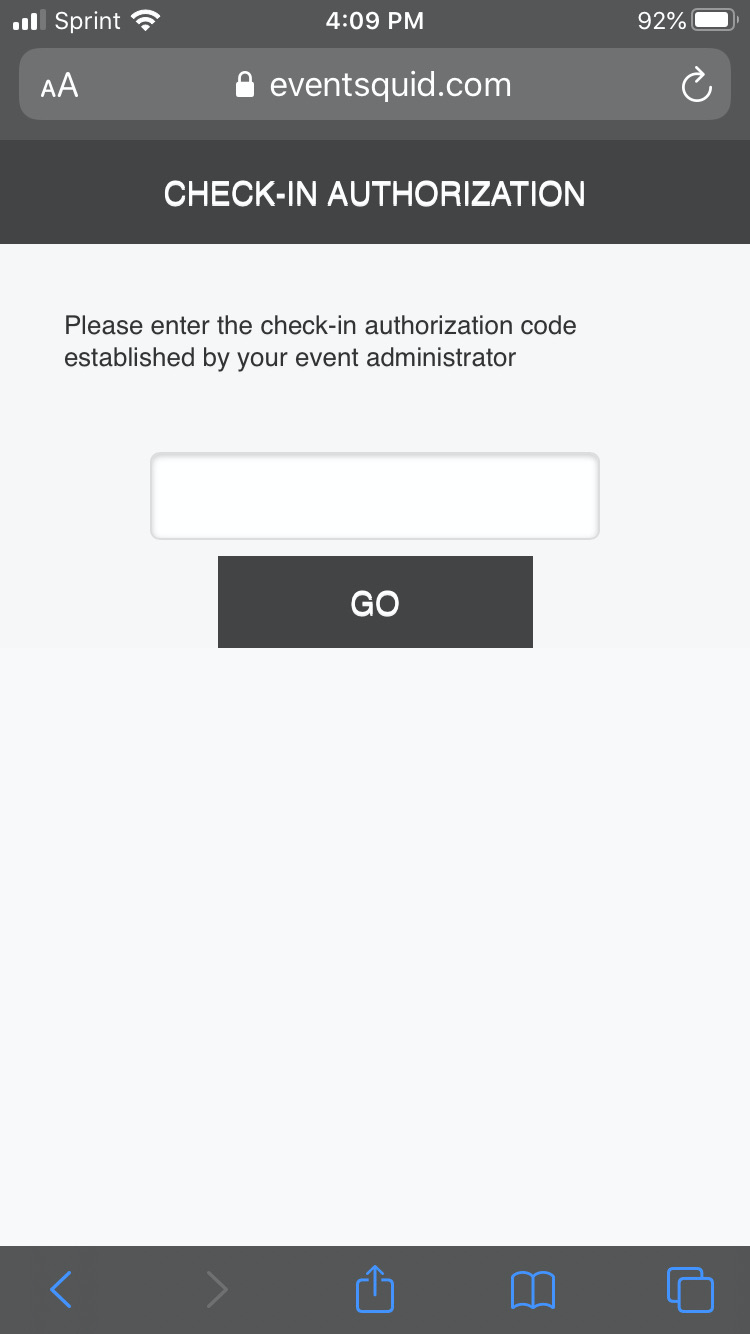
Once the Check-In App is accessed, the system will prompt the admin to input the Check-In Authorization code.
This is a universal admin code that you configure within the Event Settings area of the Manage Organization tab (on the Dashboard):